Before you start
You know the routine. You copy text out of a Google Doc, paste it into Claude, then paste the answer back. This add-on cuts out the copying.
Claude sits in a sidebar next to your file. It reads the doc, sheet or deck you have open, and it sees what you have selected. When you ask for a change, the edit goes straight into the file. But check these three things first, or you will get stuck halfway.
Step 1: Install it from the Marketplace
The add-on lives in the Google Workspace Marketplace. It is called "Claude" and it is published by Anthropic.
- Open the Claude listing in the Google Workspace Marketplace.
- Check it says By: Anthropic under the name.
- Click Install and follow Google's prompts.
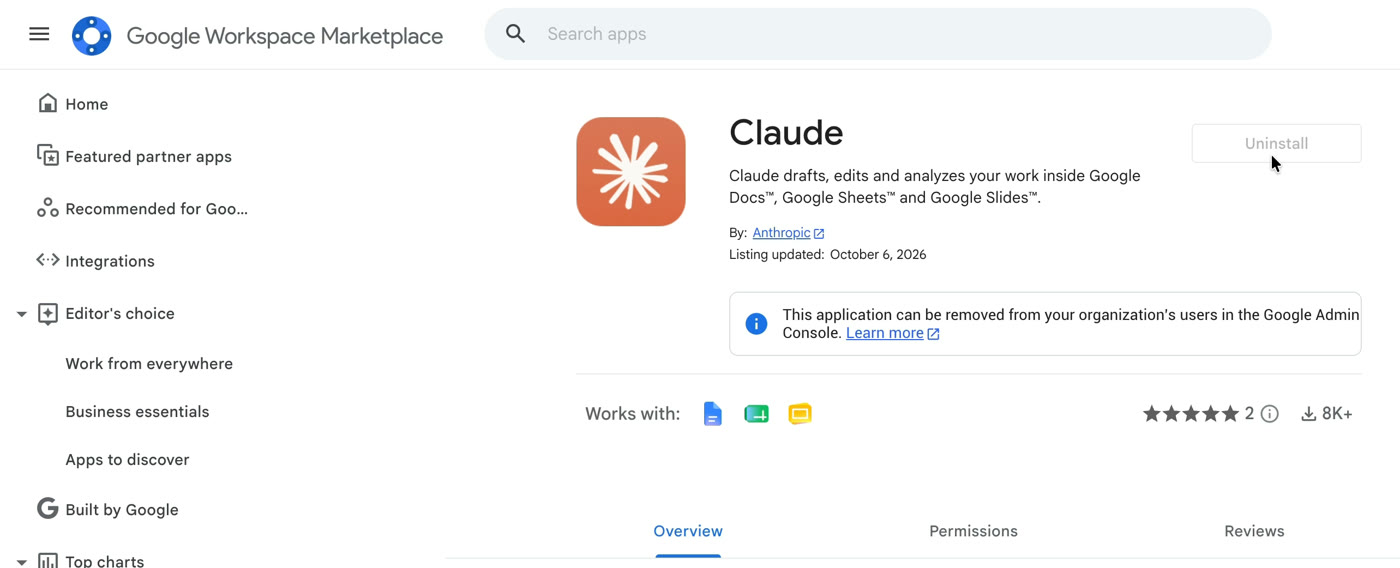
You only install it once. The same add-on covers Docs, Sheets and Slides.
Step 2: Open Claude in your file
Open any Google Doc, Sheet or Slides deck. The menu is the same in all three.
- Click Extensions in the top menu.
- Hover over Claude.
- Click Open Claude.
- The first time, allow the Google permissions it asks for, then sign in with your Claude account.
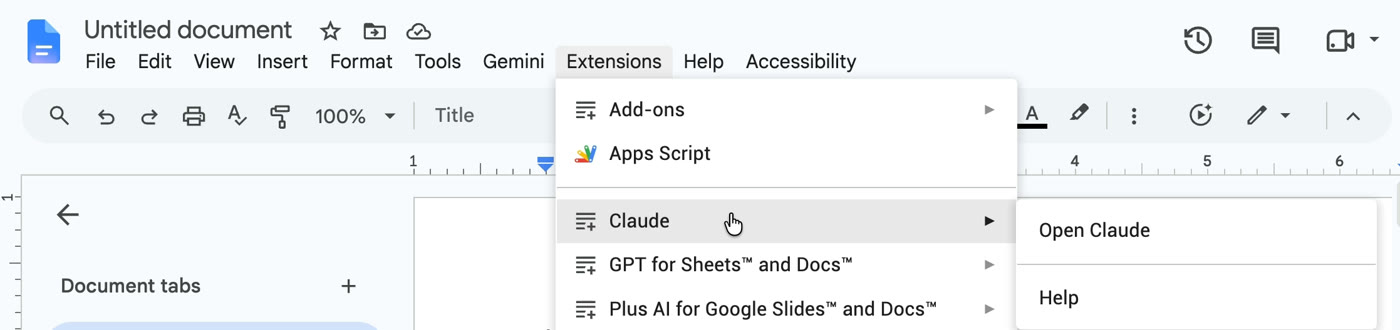
The sidebar opens on the right. Now, two things to know before you type anything.
Step 3 (optional): Turn on the Google connectors
The add-on works without this step. Connectors just give Claude more reach.
Without connectors, Claude works with the file you have open. Connect Google Drive and it can find files beyond the one you have open. The sidebar uses the same models, connectors and skills as your Claude app, so you set this up in Claude itself.
The Google Docs, Sheets and Slides connectors also work the other way round: from a normal Claude chat on the web or desktop app, you can ask Claude to open, create or edit a Google file. Access follows your Google Drive sharing permissions.
- Open Claude and go to Customize, then Connectors.
- Search for
google. - Connect the ones you want: Google Drive, Google Calendar, Google Sheets, Google Docs and Google Slides.
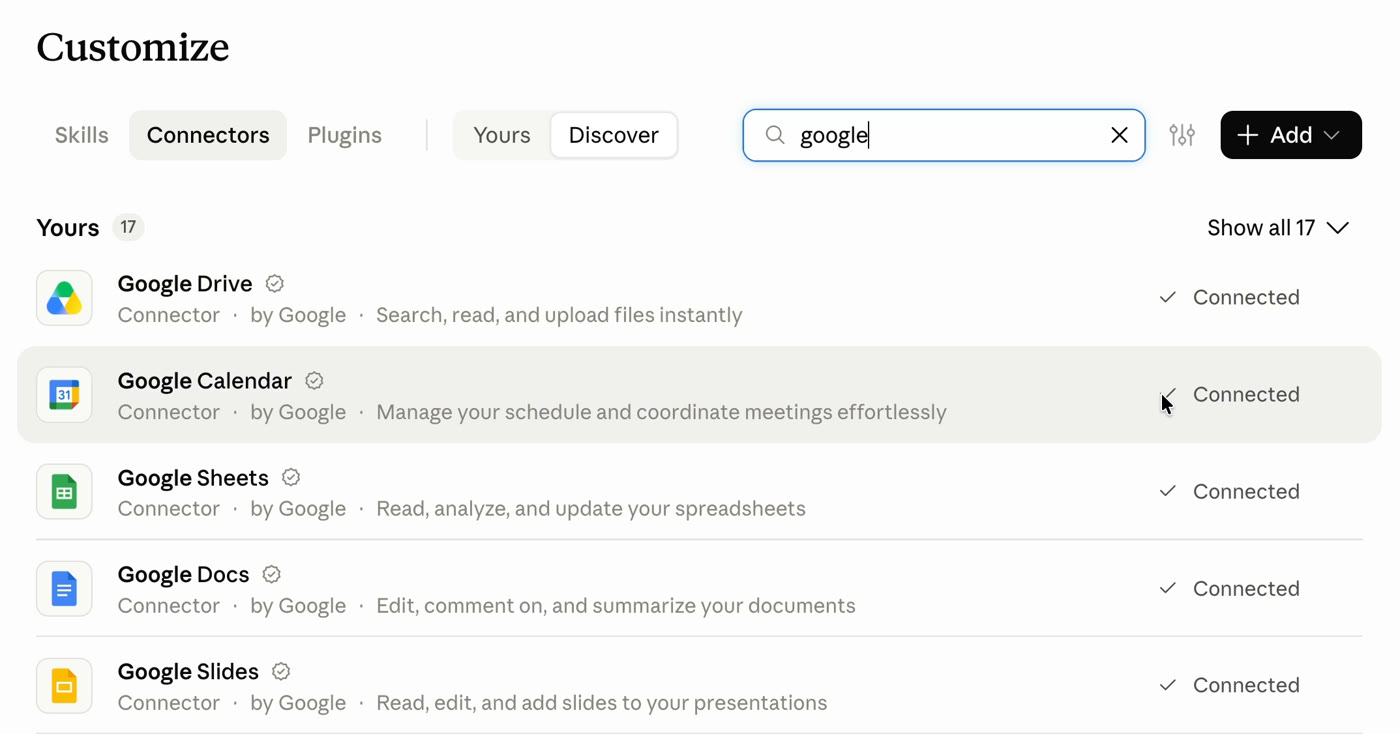
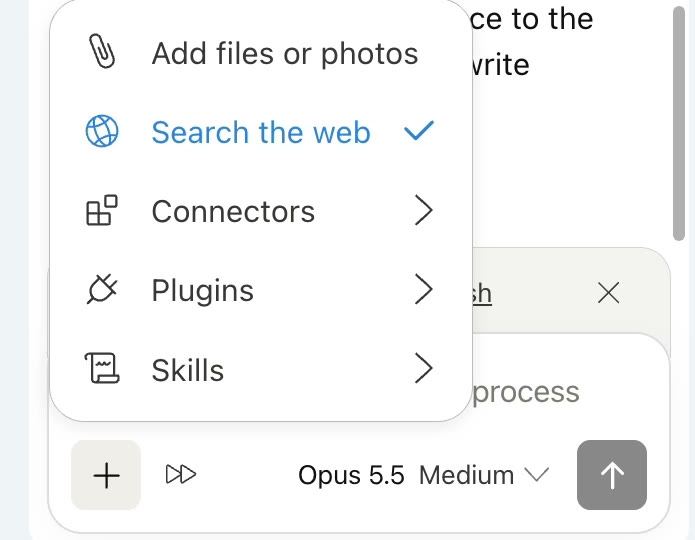
Once they are on, they show up in the sidebar too. Click the + button at the bottom of the sidebar, then Connectors.
What to ask it for
Short, plain prompts work. Select the part you want changed first, then paste one of these into the sidebar.
These are examples to start from. Swap in your own section names, columns and numbers.
In Google Docs
Clean up a report, a proposal or a plan without rewriting it yourself. The first prompt is the one from the video.
Tighten up the executive summary and lead with the recommendation.
Turn the next steps into a table with an owner and a due date for each one.
Read this whole document and list anything that contradicts itself, like a number, date or name that is different in two places. Do not change anything yet. Show me the list first.
In Google Sheets
Pull numbers together and explain them in plain English. Claude can write formulas, build pivot tables and native charts, and add new tabs.
Pull through the Q3 budget versus actuals report. Give each team its own tab, add a summary chart, and flag any team that is over budget.
Add a column that shows the difference between budget and actual for each row. Then write three short sentences at the top that explain the biggest gaps, in plain English.
In Google Slides
Tidy up a deck before a meeting.
Go through this deck and give every slide one clear headline. Cut each slide down to three short bullet points or fewer. Do not change any numbers.
Add a summary slide at the end with the three decisions we need from this meeting, based on what is already in the deck. Use the deck's own layouts.
Check every slide for overlapping or off-slide elements and text that is hard to read. List them, then fix them.
If Claude adds a chart to a slide, it goes in as a static image, not a live chart.
Doing the same job every week, like a monthly report deck? Save the steps as a skill, so you and your team run it the same way each time.
Limits and your data
It is a beta. Know these before you lean on it for real work.
Read it from Anthropic
Plans, limits and steps can change during the beta. These are the pages to check.
- Claude for Google Workspace (Anthropic product page)
- Claude now works in Google Docs, Sheets and Slides (Anthropic announcement)
- Use Claude in Google Docs, Sheets and Slides (Claude Help Center)
- Use Google Workspace connectors (Claude Help Center)
- Claude in the Google Workspace Marketplace
Muhammad Asmal
Muhammad Asmal is an AI business growth strategist and the founder of Asmal Digital and AI Lead Builder. He helps business owners put AI to work in practical ways, drawing on more than 13 years of digital marketing agency experience. He has delivered in-person AI workshops across the US, South Africa and Dubai, and his AI education content has passed 10 million views across TikTok and Instagram.
Build with a community behind you.
Join the AI Lead Builder community for practical support putting AI to work in your business.
Your membership brings together weekly coaching with Muhammad, training and call replays, business software, and the Agency OS plugin.
Learn and get help
Weekly coaching, training, and a community of business owners.
Build and put it to use
Agency OS plus software for your CRM, funnels, and follow-up.
Hear it from members, on camera
Straight from the community chat
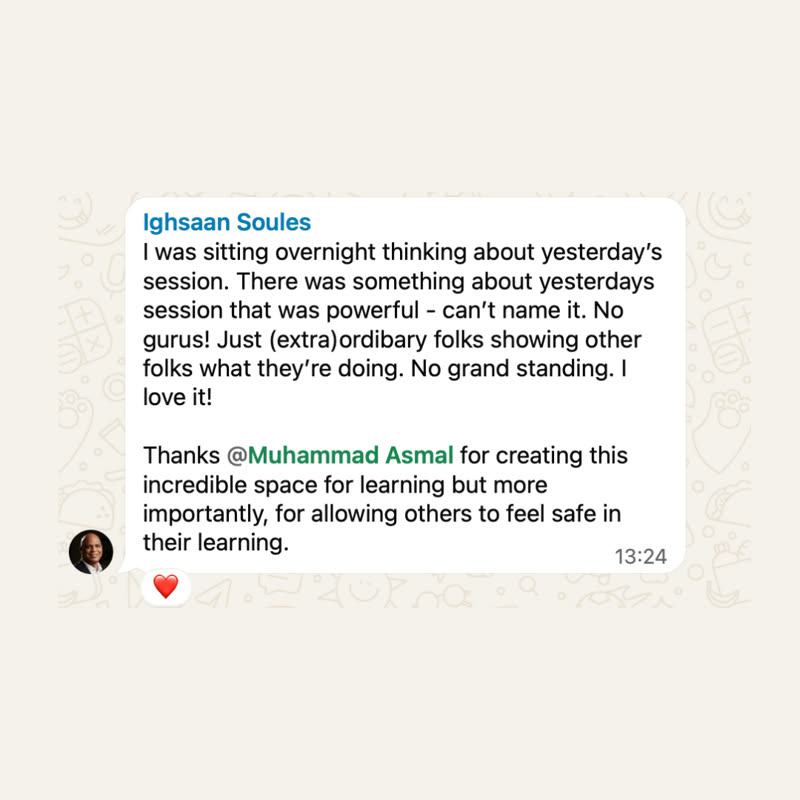
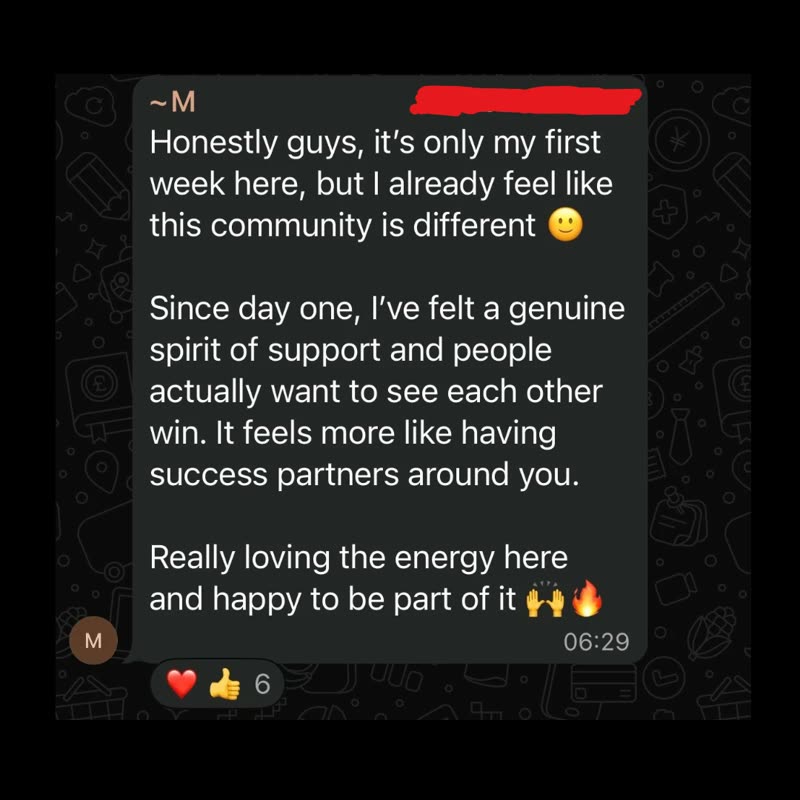
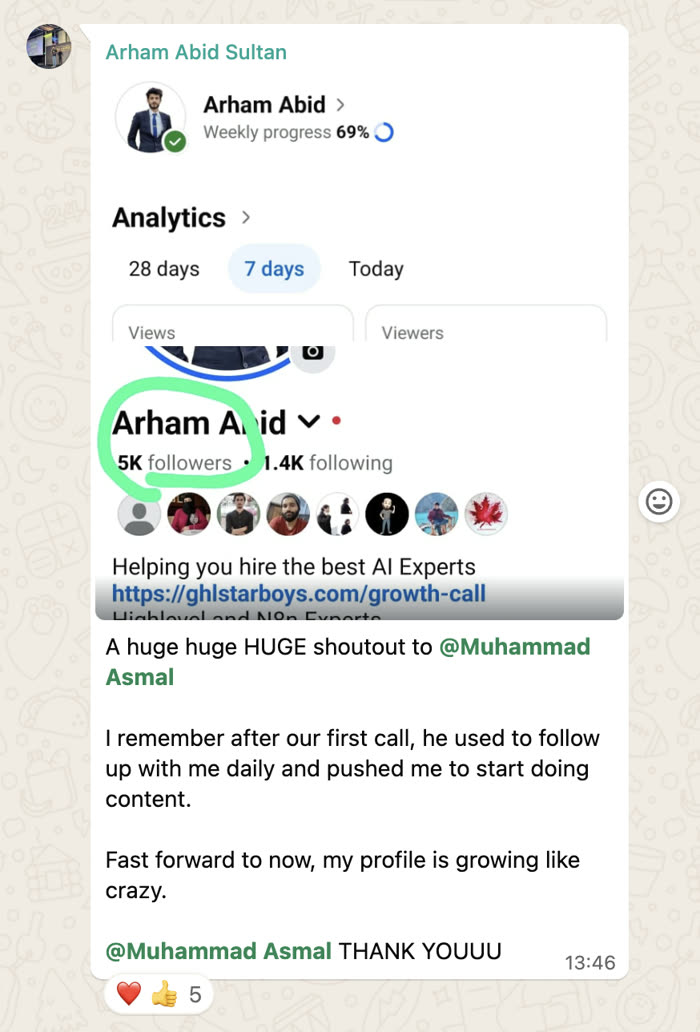
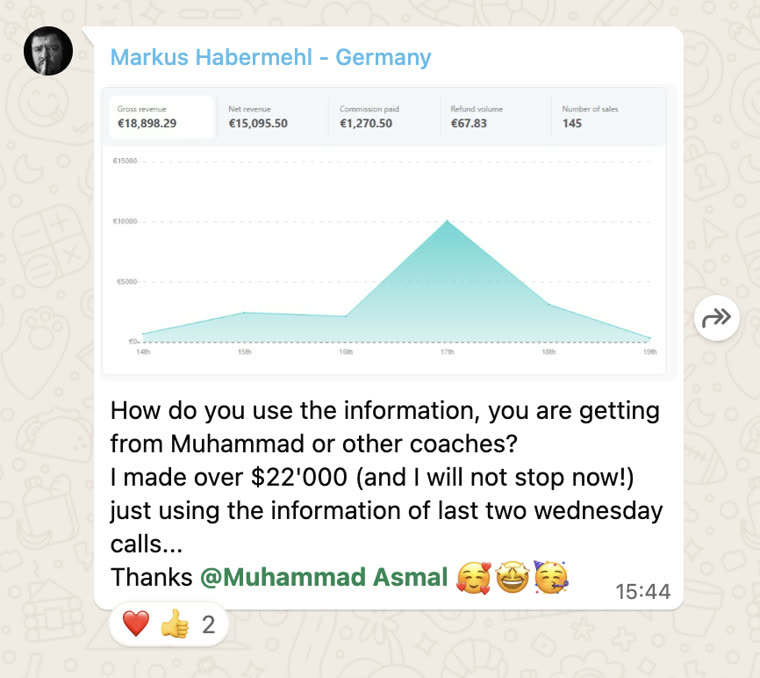
Shared with each member's permission. Individual results vary.
Cancel anytime.
Join AI Lead BuilderSee the membership details and current offer on the next page.